
Sales Order Management
Support Guide
Permissions |The Sales Orders List | Sales Order Navigation | Sales Order Information | Sales Order Templates |Recap | FAQs
Sales Order management is the essential process of overseeing a Customer’s Order from its initial stage to final fulfillment. It involves carefully tracking order details, setting statuses, and ensuring all related entities are managed efficiently. This guide is designed to help users master Striven’s tools for Sales Order management, covering navigation, information viewing, Template creation, and the internal review process for quotes.
Read this guide if you are trying to:
Access to Sales Order Information in Striven is managed by a variety of user permissions. To verify your current access, consult your system administrator or the individual responsible for assigning and managing User Roles within your organization.
You can also check the permissions specifically related to the page you are viewing in Striven by clicking on the kebab menu in the top right corner of the page and select Settings. This will display the Settings Info page, where the relevant permissions are listed, along with an indication of your current access status.
If there is a permission listed that you do not have access to, the system may offer the option to Request Access (depending on your organization’s system settings). Choosing this option will notify a designated individual, allowing them to grant you that specific permission.
The Sales Order List will display important information in which you can view if you have the appropriate permissions. Sales Orders are also stored within the Customer's Information and can be viewed by navigating to the waffle menu on the Customer's Dashboard, then selecting the Sales Order option. To view the Sales Orders List, navigate to Customers > Sales > Sales Orders.
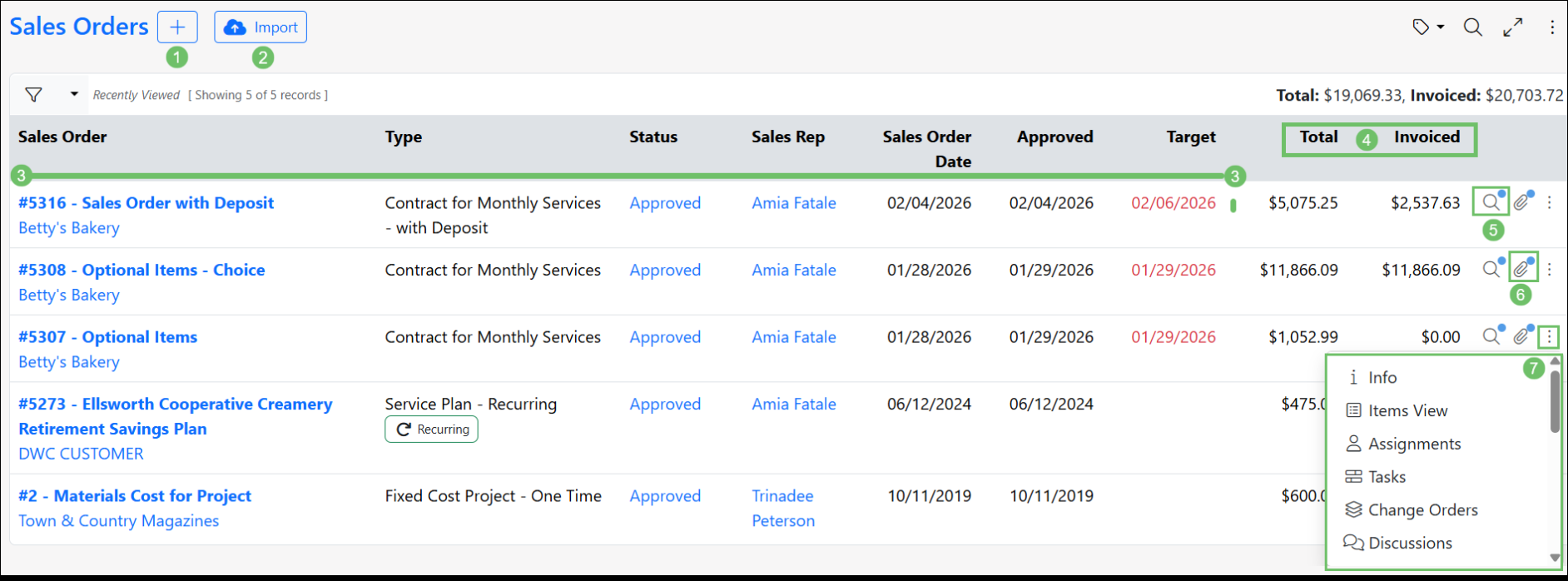 Example of the Sales Order List Page
Upon viewing a created Sales Order, there are two navigation bars present. The Top Navigation Bar contains options for Sales Order Actions, and ways to interact with the Sales Order like printing or sharing. The Left Navigation Menu presents options to view information related to the Sales Order like Assignments, Discussions, and more. The options available from each navigation bar are detailed in the section below.
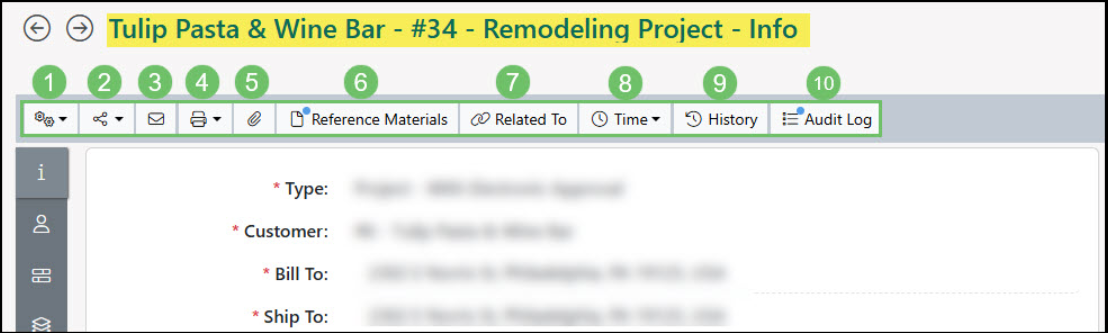 Example of the Top Navigation Bar of a Sales Order
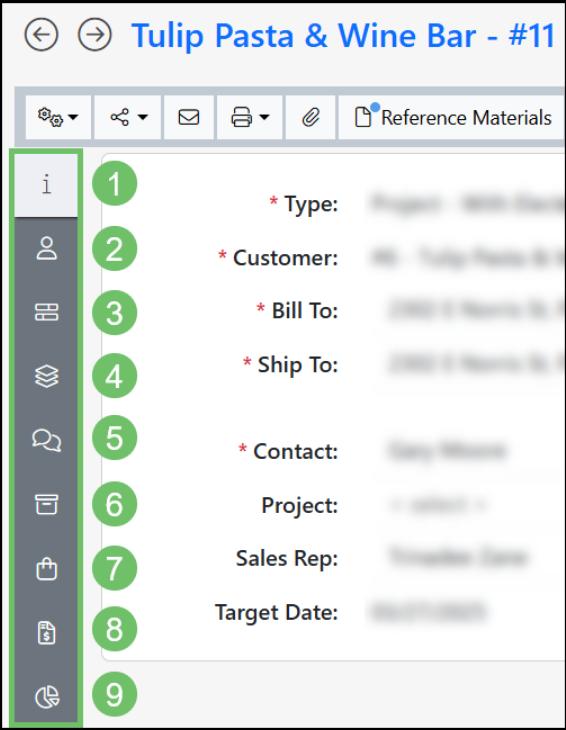 Example of the Left Navigation Menu on a Sales Order
The Sales Order Info page will display all the Order information needed to process your Customer's request for goods or services. From the status to the related transactions, this can all be gathered from right from viewing the Sales Order itself. While Standard Orders offer flexibility and allow for editing as needed, Contract Managed Orders follow a more strict editing process where only unapproved Sales Orders can be updated and edited. Change Orders can be used to make any increases or decreases to the overall Sales Order that have been configured as a Contract Managed Order.
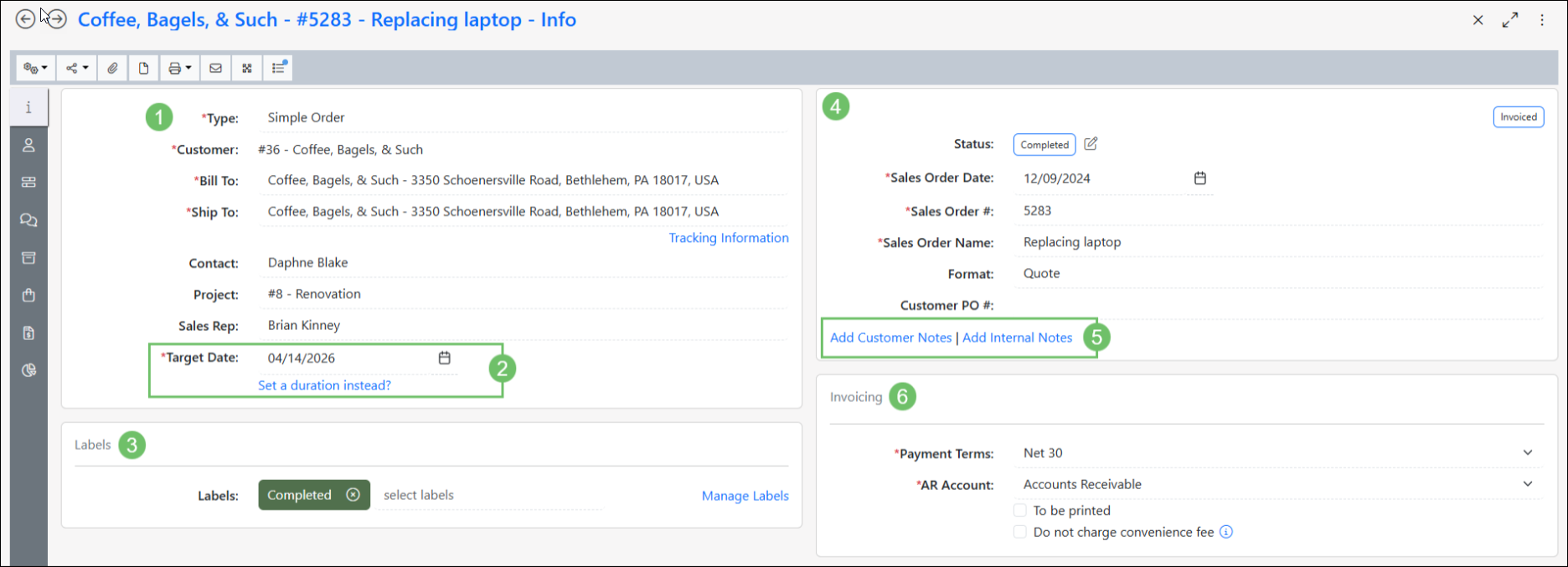 Example of the Sales Order Info Page
Sales Order Templates save significant time and effort by eliminating repeated manual entry for Sales Orders that are created on a regular basis for specific goods or services. After adding information to a Sales Order, there’s an option available at the bottom of the page that allows you to Save As Template.
Once selected, you may choose the name for the Sales Order Template, and then choose which information will be copied to new Sales Orders once the Template is used. You may select to copy the Sales Order Name, Customer and Location information, and pricing information for the Items on the Sales Order.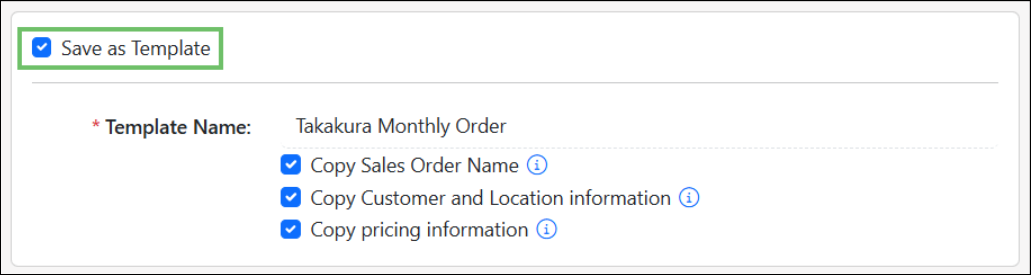 Example of the Save as Template Settings Options on a Sales Order
To use a Template to create a new Sales Order, navigate to the Add Sales Order page, then select the Create from Template option.
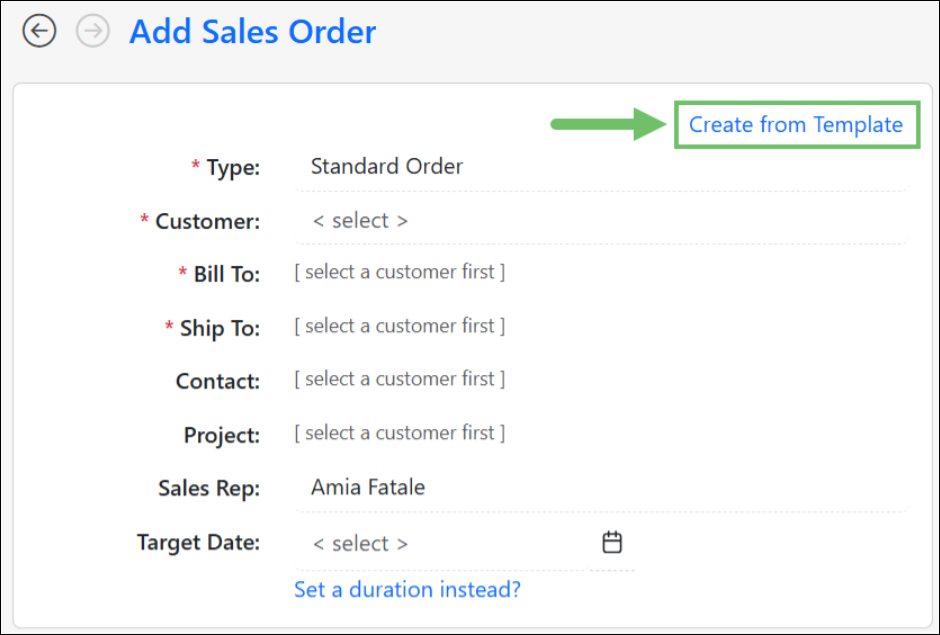 Example of the Create from Template Option on a Sales Order
After selecting the Create from Template option, several options will appear:
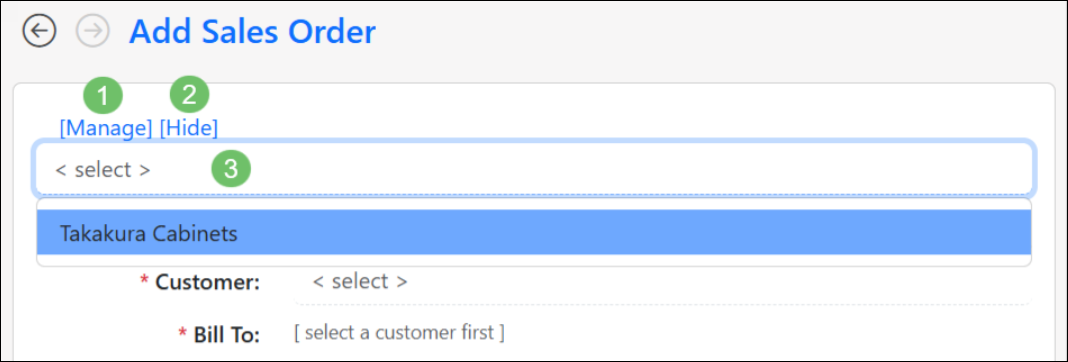 Example of the Available Options when Creating a Sales Order from a Template
After a Sales Order Template has been selected for use, the page title will indicate that you are now adding a Sales Order using a Template. The name of the Template chosen will be displayed there as well. Select fields on the Sales Order will be filled in with the information you saved to the Template, like Customer Name, Locations, and Sales Order Name.
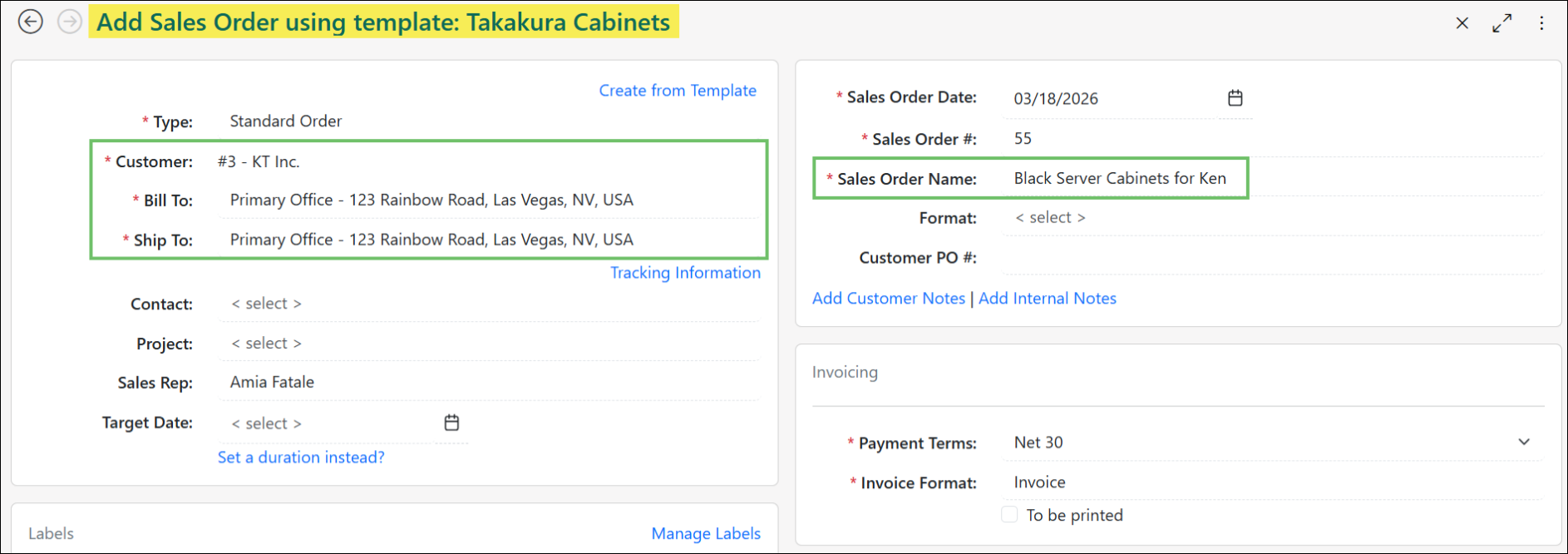 Example of the Information Carried Over to the New Sales Order from the Template
Sales Order Templates can be managed by selecting the Manage option available when choosing to create a Sales Order from a Template, or by navigating to Company > Settings > Accounting > Sales > Sales Orders > Sales Order Templates.
From the Sales Order Templates page, we have the ability to create, edit, or deactivate Sales Order Templates. The section below details the options available:
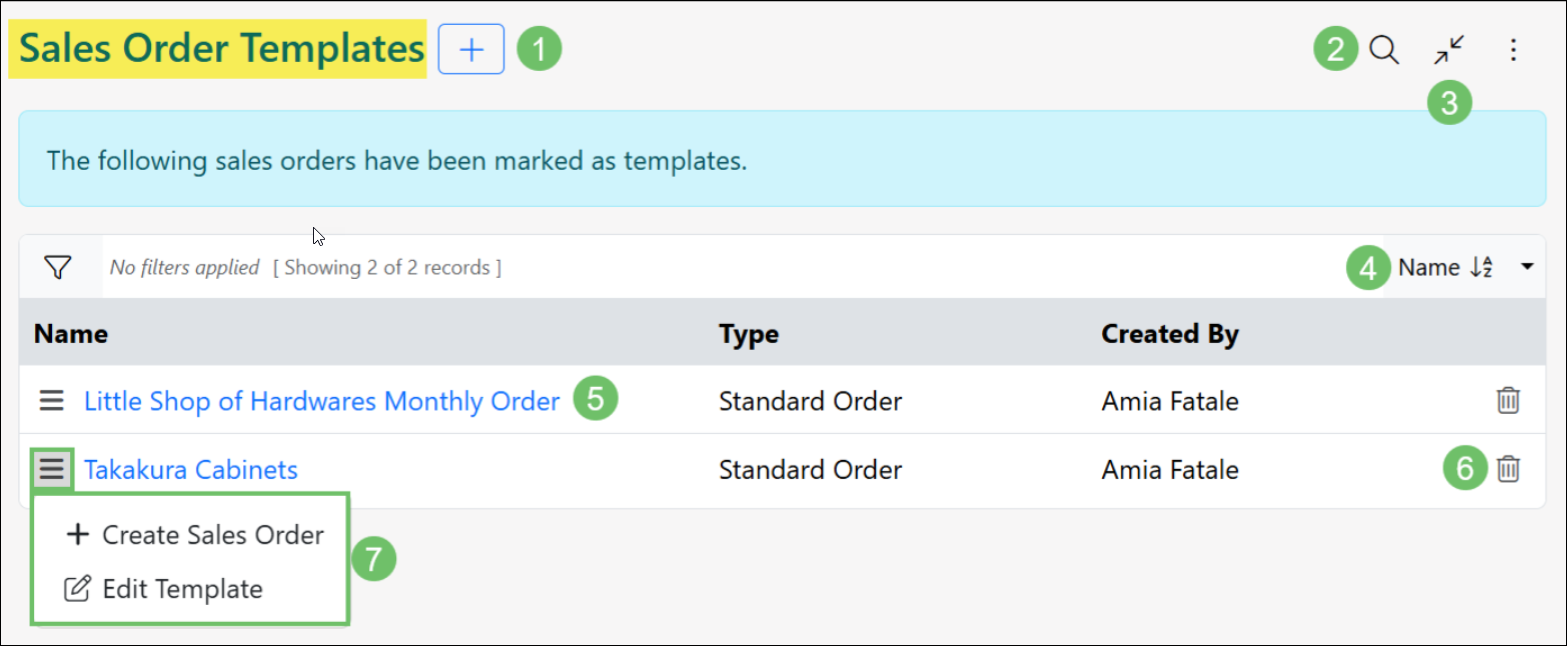 Example of the Sales Order Templates Page
With this guide, we have discussed navigating the Sales Order List page and the information available from a Sales Order to assist you in finding the details you need regarding your Orders. We have also discussed Sales Order Templates and the Internal Order Review Queue, which are available to enhance your Sales Order creation process.
To ensure data consistency, the system utilizes a fixed set of Sales Order Statuses, which include Quoted, Pending Approval, Approved, In Progress, Completed, Declined, Canceled, and Lost. For any classification needs that extend beyond these standard statuses, users should utilize the customizable Sales Order Labels feature.