
Striven Resources and Support Documentation
Add a concise subheading about your product or business to your students.
Welcome to Striven! Explore introductory resources and setup steps to quickly get your business up and running.
Explore Getting StartedAccess step-by-step instructions, documentation, and user guides covering Accounting, CRM, HR, Projects, and Inventory.
View Support GuidesDiscover how Striven seamlessly connects with your favorite software and third-party applications.
Browse IntegrationsFind API documentation, technical resources, and developer tools to build custom workflows and solutions.
Developer DocsPermissions | Sales Order Actions | Recap | FAQs
This guide is designed to walk users through the many Actions that can be taken right from the Sales Order page. From creating related entities, such as Purchase Orders or Tasks, to generating Invoices, there are plenty of accomplishments that can be made right from this screen without having to navigate away.
Read this guide if you are trying to:
✔ Create a copy of a Sales Order.
✔ Create an Opportunity, Purchase Order, Project, or Task from the Sales Order.
✔ Generate an Invoice related to a Sales Order.
Access to Sales Order Information in Striven is managed by a variety of user permissions. To verify your current access, consult your system administrator or the individual responsible for assigning and managing User Roles within your organization.
You can also check the permissions specifically related to the page you are viewing in Striven by clicking on the kebab menu in the top right corner of the page and selecting Settings. This will display the Settings Info page, where the relevant permissions are listed, along with an indication of your current access status.
If there is a permission listed to which you do not have access, the system may offer the option to Request Access (depending on your organization's system settings). Choosing this option will notify a designated individual, allowing them to grant you that specific permission.
There are many actions geared to quickly create related entities within Striven. This allows you to keep the relationship with the Sales Order by utilizing the Related To tab throughout the system. Entities to create from a Sales Order include Opportunities, Purchase Orders, Projects, Tasks and Default Tasks. Creating a copy of the Sales Order and invoicing the Customer can be done right from the actions menu as well. Default Tasks that will be available to select will be based on the Items on the Sales Order. Review the Default Tasks List section in the Item Management Guide to learn more about utilizing Default Tasks in Sales Orders.
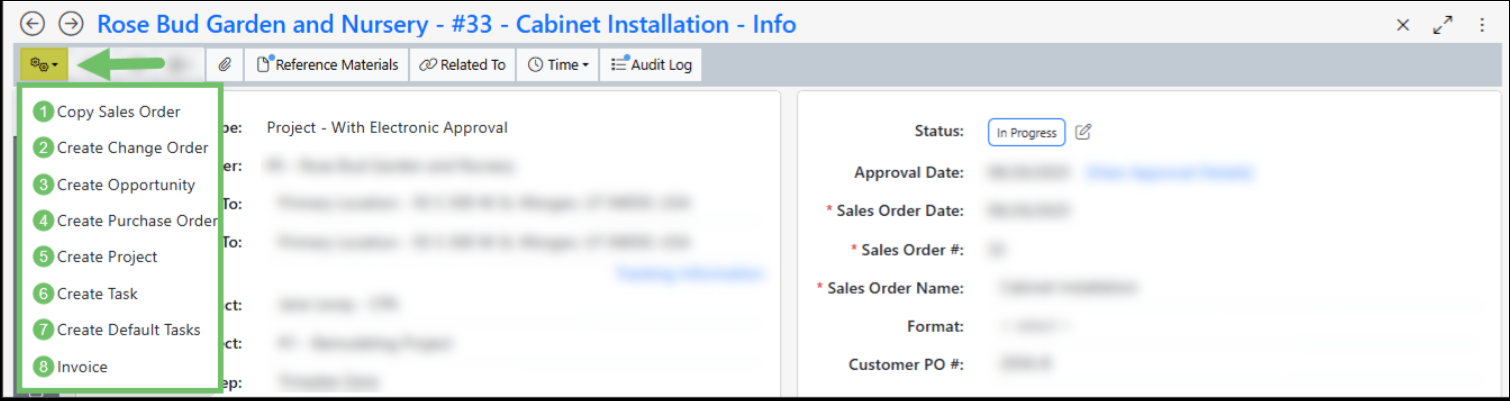 Example of Sales Order Actions Menu
The Sales Order Actions Guide explains how to use the Striven Sales Order page to quickly generate associated entities such as Opportunities, Purchase Orders, Projects, Tasks, Change Orders, and Invoices. Additionally, the guide provides instructions on how to duplicate a Sales Order and how to efficiently create Default Tasks based on Items within Striven.
The Create Change Order option is missing because the Sales Order must be Approved or In Progress status to be available. It is not available in pre-approval statuses of Quoted, Pending Approval, or closed statuses of Completed or Closed. Furthermore, the feature is only available for Contract Managed Sales Orders; the option is removed if the setting for Turn on contract management is disabled on the Sales Order Type.
